Welcome to the complete setup and usage guide for the Pitchgrader iPad app. This guide will walk you through everything from server setup to advanced features of Pitchgrader.
Your Pitchgrader.com account login is the same login you use for the Pitchgrader iPad app in Settings.
We've already placed some sample game files in your account. You can place your Trackman or Flightscope CSV files there. Please be sure they are unmodified files, as editing can damage the file data format. If you do modify files, be sure to save in CSV format, then close the file, then re-open the file to check that the game date column, time column, and tilt clock time column, are all showing the correct info. Common editing is usually to add text notes to the "notes" column in the file. Those notes for each pitch are visible in Pitchgrader in the Plate Appearance and the 3D pages.
Trackman Bullpen Files: You can also upload Trackman bullpen (non-game) files. PitchGrader will automatically sort out plate appearances based on strikes/balls/outs for imaginary batters. To see these bullpen sessions in the tabs, check the box labeled "Include Bullpens" in the app.
Required columns in the CSV files for a pitch are: Date, Extension, HorzApprAngle, HorzBreak, HorzRelAngle, InducedVertBreak, Level, PitchNo, Pitcher, PitcherThrows, RelHeight, RelSide, RelSpeed, SpinAxis, SpinRate, TaggedPitchType or AutoPitchType or both, VertAprAngle, VertBreak, VertReleaseAngle.
Files placed there automatically update all of the iPads you have Pitchgrader on.
CSV files are standard Trackman, Flightscope, etc. export files. So after a game or bullpen, you export the CSV data file and then upload to your Pitchgrader cloud server. Alternatively, if you have a lot of files to upload or delete at once, you can use any standard FTP program to do that. I can help you with that if needed.
Please be sure that the total amount of memory space used by your files is 750MB or less (about 5,000 games).
Important: Export files must be for a single game only. Do not upload multi-game export files.
File names that you use for your CSV files should indicate something about what's in the file, such as the team names, date, etc. That makes it easier to manage those files in the future, including being able to sort the list of files easily.
A recommended file name format is: mmddyy_team1_team2_gamenumber_version.csv
Where "mm" is the month, "dd" is the day, "yy" is the year, "gamenumber" is usually 1 unless a double header, and "version" is usually 1 unless you edit the game file.
When you've loaded the app on your iPad, go to Settings and enter your Pitchgrader.com account credentials:
Once you log in, it will auto load the files from the server and you're ready to use the app. The same login and password is used for all iPads on your account.
You'll need to log in at least once with the iPad App login with an internet connection. If you set the checkbox to save the login, then you don't have to re-type it all the time. If you've already placed files in your account, it will download them. When you delete files from the Pitchgrader server, when the iPads start up Pitchgrader, it will auto check the server and remove files that you removed, and add any new files to your iPad. So you only have to manage the files on the Pitchgrader server to get everyone's iPad in sync. Or if the app is already running, tap on "Check Files" to update the files.
Generally speaking, Pitchgrader is about a player in a game. Could be a Pitcher or a Batter. So you'll choose "Player Analysis", then "select Player or Game" button to choose a player, and then the various tabs help you review the player.
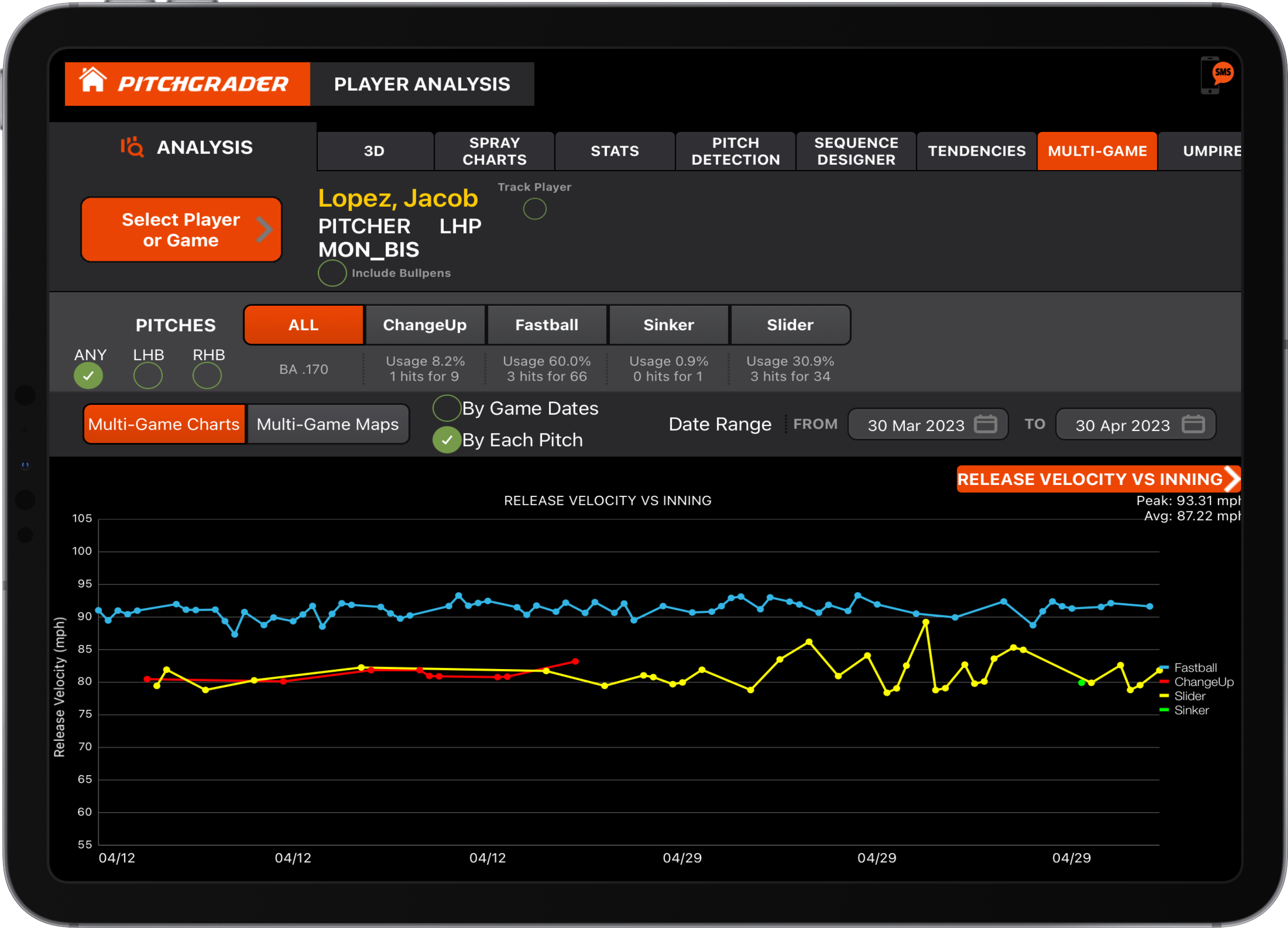
The Multi-Game, Stats, and Sequences tabs are for reviewing a player over a series of games or date range, as opposed to the other tabs which are for the selected game only.
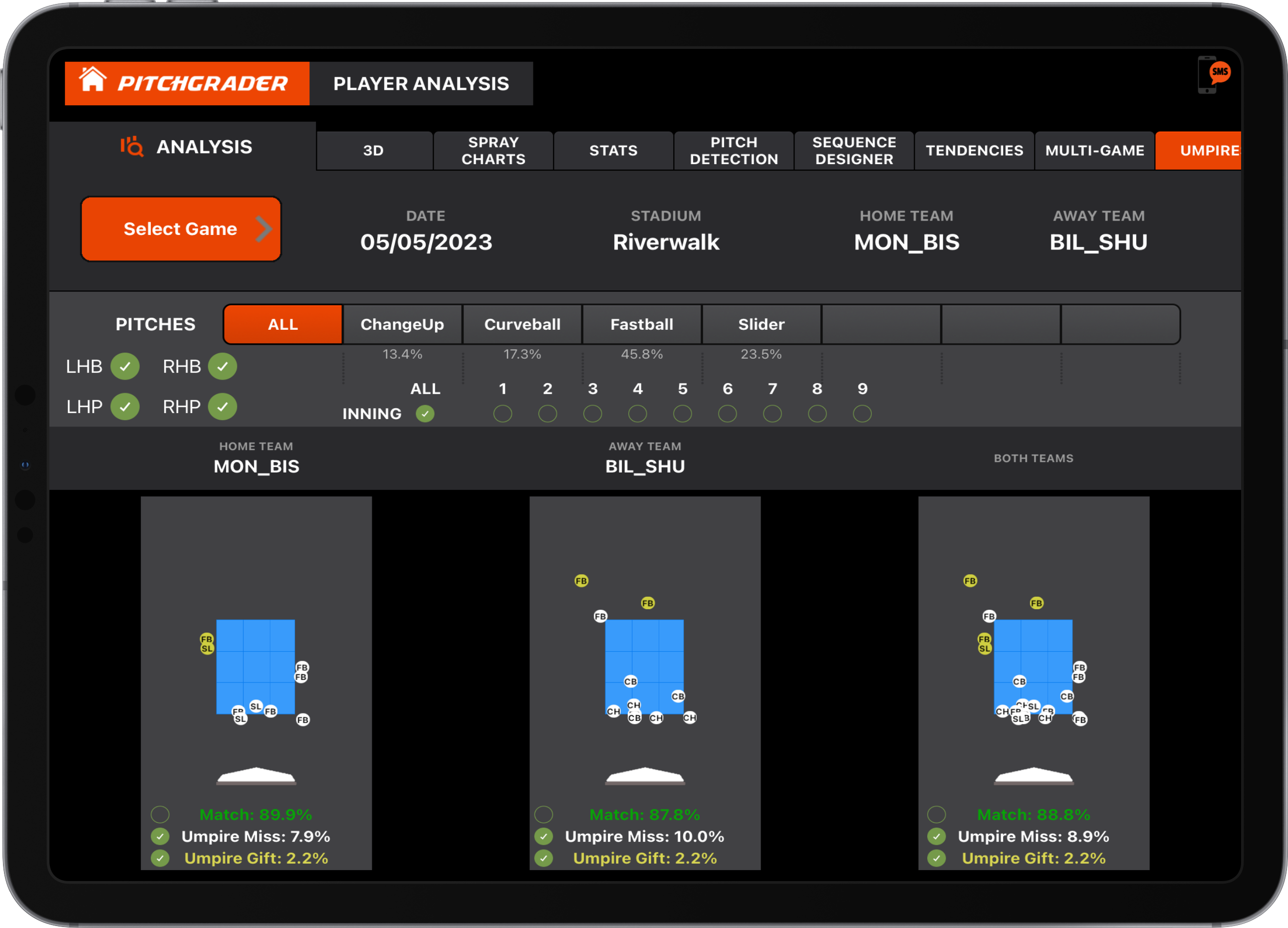
The Umpire tab is somewhat similar to the "Umpire vs Actual" control that's on the strike zone pages, except it evaluates the entire team for a game.
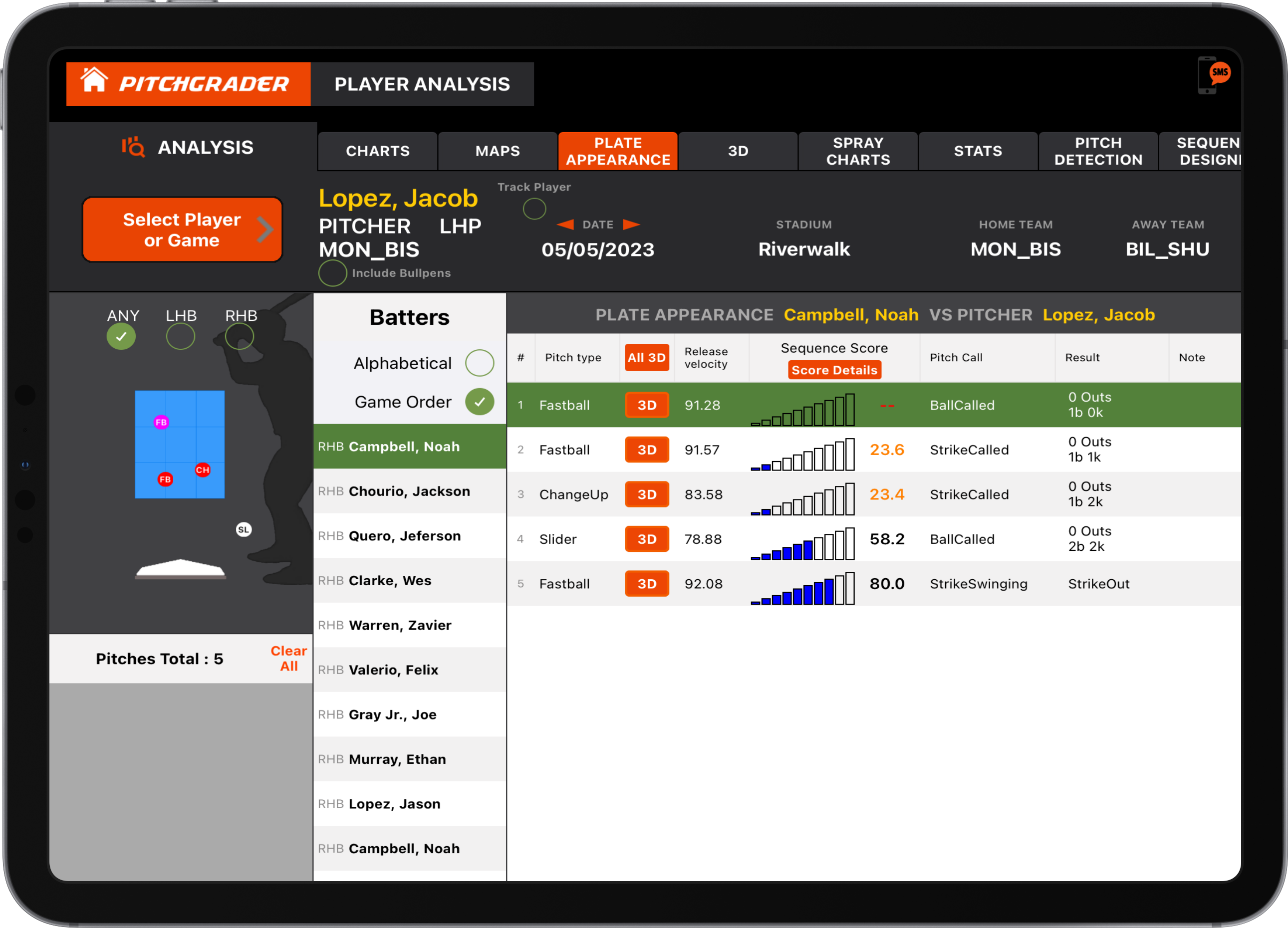
When you navigate throughout the app, orange boxes indicate that you can choose something by tapping on it. Usually, more charts, views, etc. For example, looking at the Plate Appearance tab for plate appearances, you'll notice a "3D" orange box next to the pitches. Tap on that and it shows you that pitch in 3D. When in 3D page, tap "All 3D" box at top of plate appearance list and it shows you all the pitches of the plate appearance at the same time.
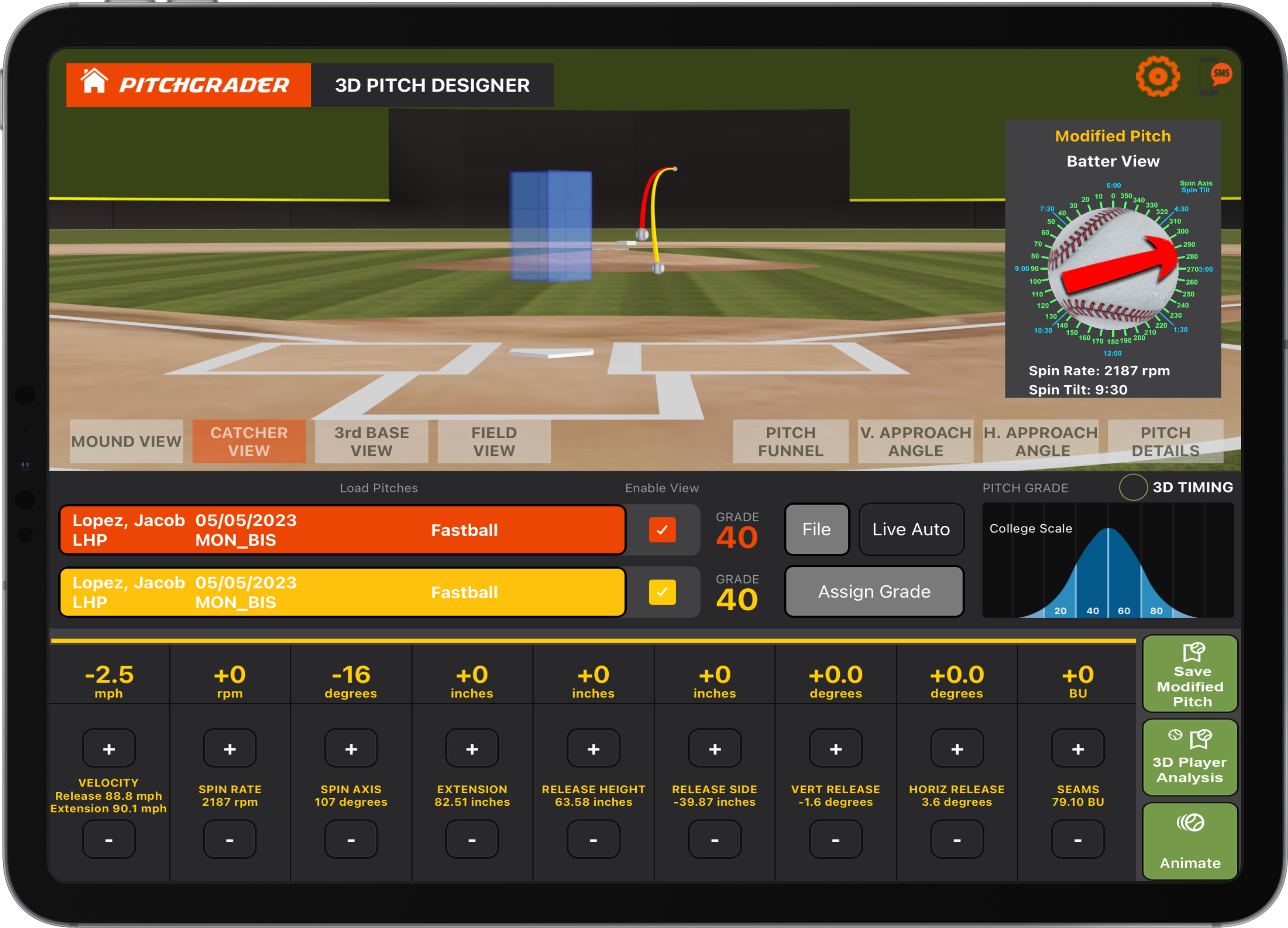
In order to use the 3D Pitch Designer section, you have to first "Tag" some pitches in the Player Analysis section. That saves the pitch to a "Reference Pitch" list. Then when in 3D Pitch Designer, near the middle of the screen you'll see a red box and a yellow box. To the left of those boxes, tap once and it opens the reference pitch list for you to choose one. The +/- buttons change the values for the yellow pitch, and show you the difference between the red and yellow pitch. The simulator is a 3D physics based simulator, so you can see cause and effect when changing things like spin, extension, etc.
There is currently a list of items on our To-Do list ranging from small bugs to adding small and major features, and customer requests. So please check the AppStore about twice a month for updates.
Here are some of the main features in Pitchgrader. We've been producing Pitchgrader since 2015, and there's much more than this brief summary. Pitchgrader has been used in College, Amateur draft, MiLB systems, and MLB, so it has evolved over time with features that each required.
Pitchgrader is an iOS App that runs on iPad, iPad Pro, and iPad mini. It also uses a Pitchgrader server to synchronize the data on your iPads. However, once synchronized, there is no need for an internet connection unless you want to get any newly added files. So you could load up Pitchgrader with your games, and from then on, use all of the features in Pitchgrader even if there is no internet service. So if you're in the middle of a game and the internet goes down, you still have use of all the features in Pitchgrader. There is also much greater security by doing it the way Pitchgrader does over cloud based systems, especially when using public WIFI.
Pitchgrader makes use of 45 metrics within Trackman v1,v2,v3,portable files, Flightscope files, Statcast Hawkeye export files. It also automatically checks the files for errors, and in some cases automatically corrects the data. If there were some problem with a file, it tells you what the problem with the file was. In addition to those, unique to Pitchgrader is that it uses our machine learning AI to determine the Magnus force, Seams Imbalance Laminar and Seams Imbalance Turbulent forces. It also uses a new method for detecting the type of pitch by only using data, sidestepping the problem of pitches not being tagged correctly in the data files. It doesn't change the pitch type in the file, but lets you know the real pitch type. This is very useful for player development, but also just as useful for advance scouting and amateur scouting.
Any page within Pitchgrader you can tap the "SMS" icon in the upper right corner and it will take a snapshot of the screen and place it in a text message so you can easily share information.
In the main menu, there are 3 primary items. These are:
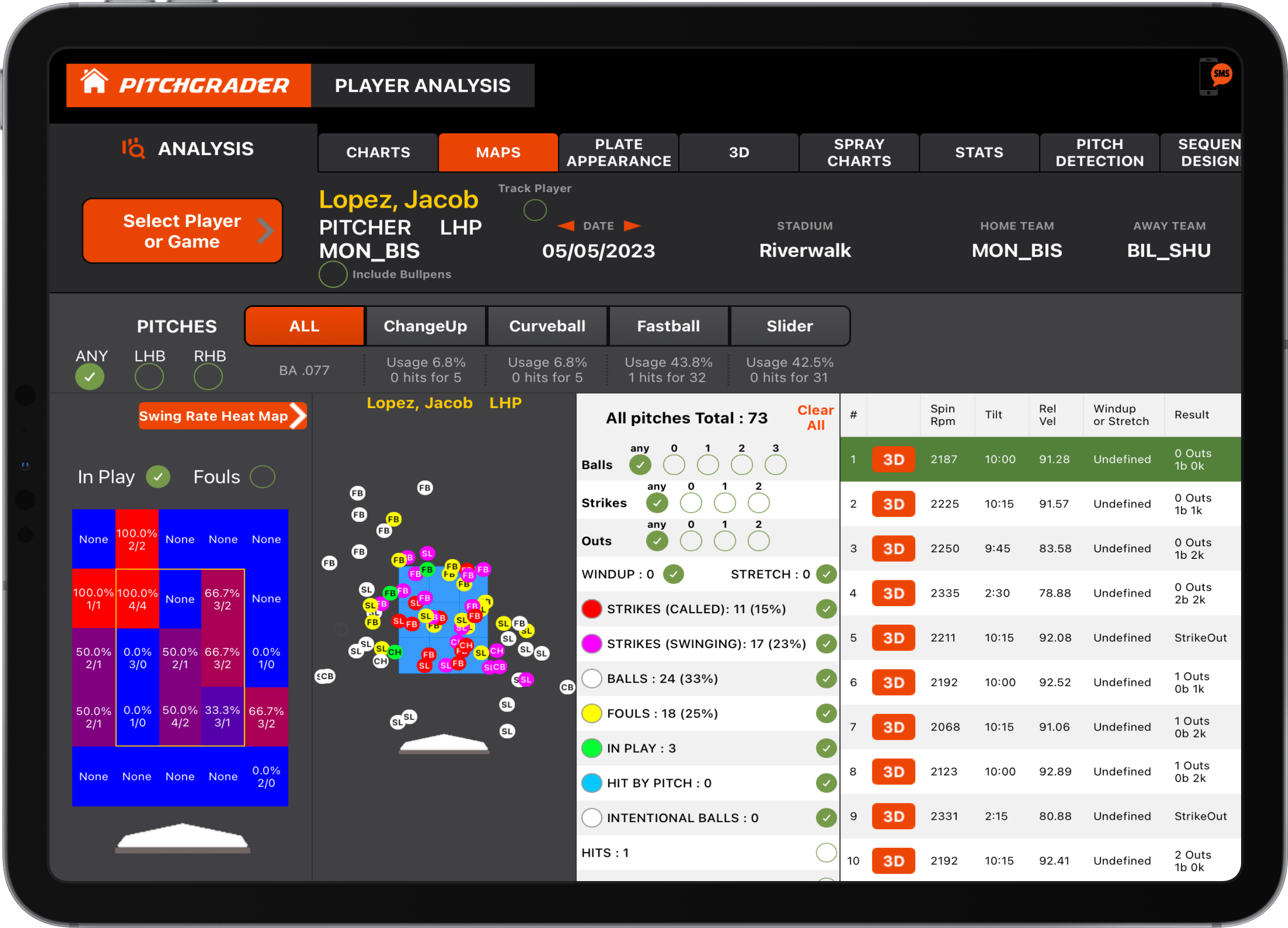
Player Analysis is used to look at one player in a game or multiple games over a date range. You can choose a pitcher or a batter, all features are available for both pitchers and batters. Within this you have:
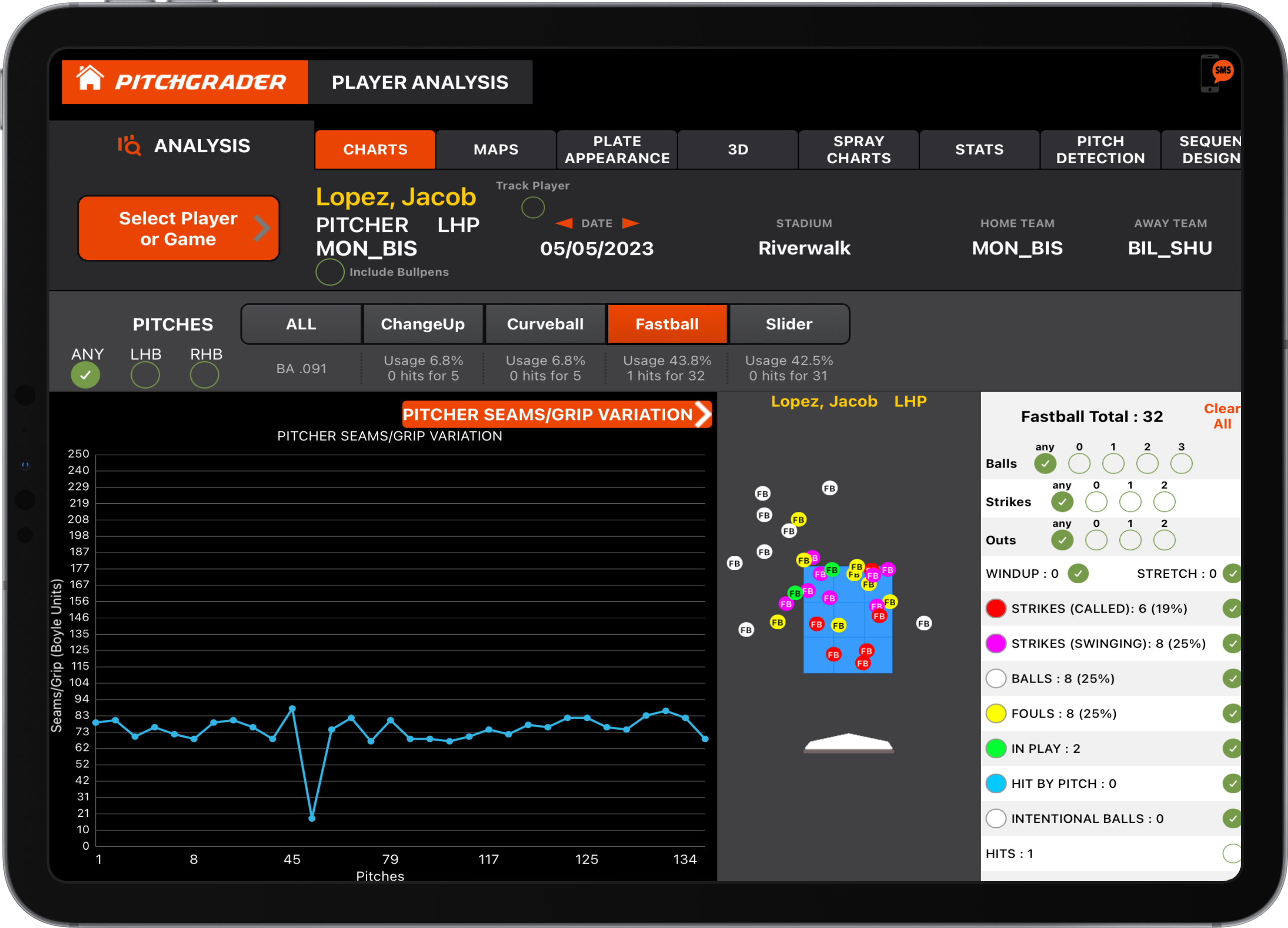
Chart Selection Tips: When you select a chart, it defaults to showing your "Favorites" list. To see the complete list of 100+ available charts, tap "All" at the top of the chart list. You can add charts to your Favorites by tapping the star icon next to any chart name. When viewing a chart, tap on any data point (dot) to see its specific value. You can also use two fingers to pinch and zoom in/out on the chart for a closer look at the data.
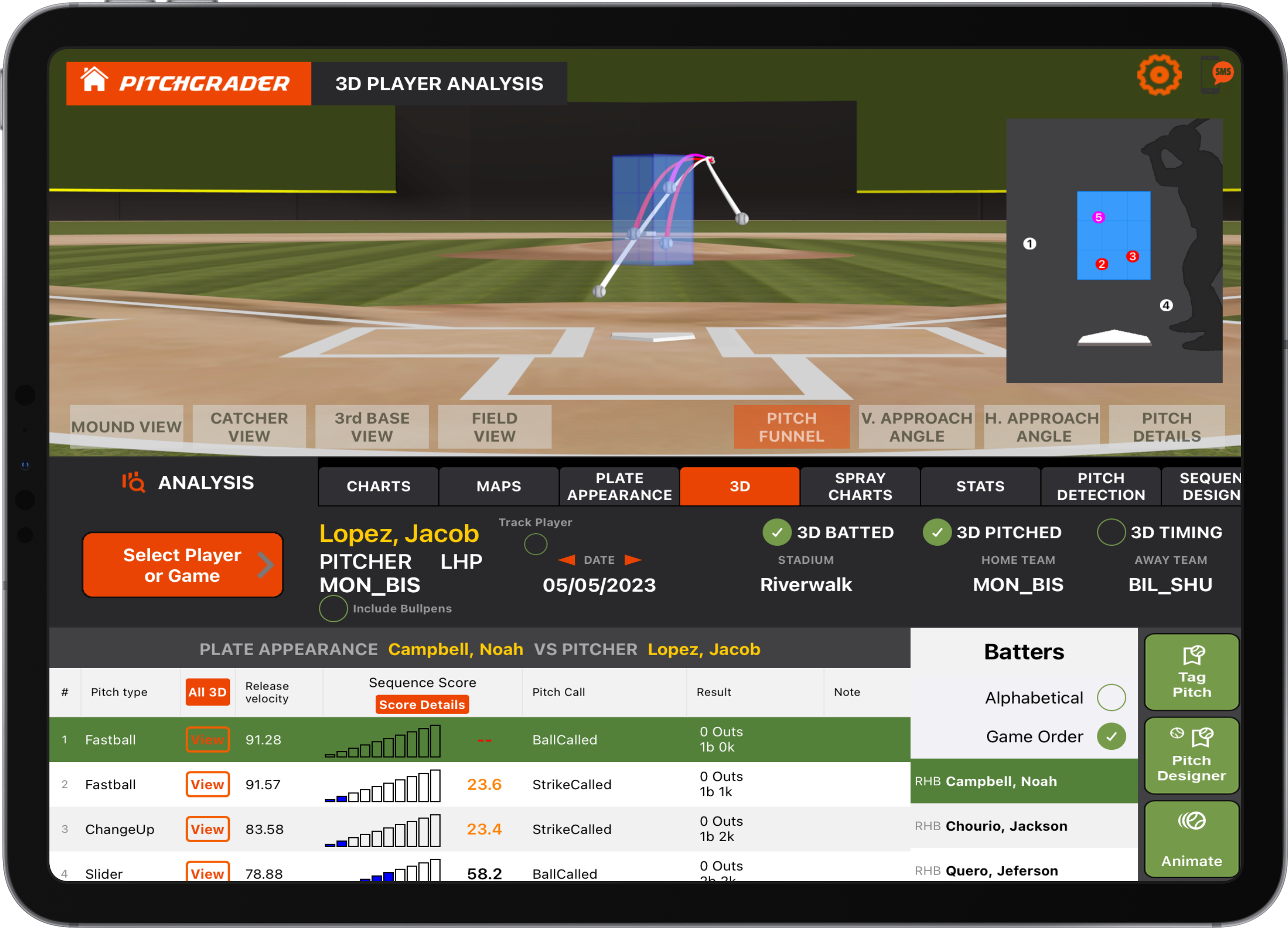
3D View Controls: Use two fingers to pinch and zoom in/out on the 3D field. Use one finger to drag and change the view angle left-right and up-down. You can also use two fingers and drag left/right or up/down to adjust the viewing perspective. To reset the view to factory settings, tap the gear symbol near the upper right of the screen and select "Default Cameras".
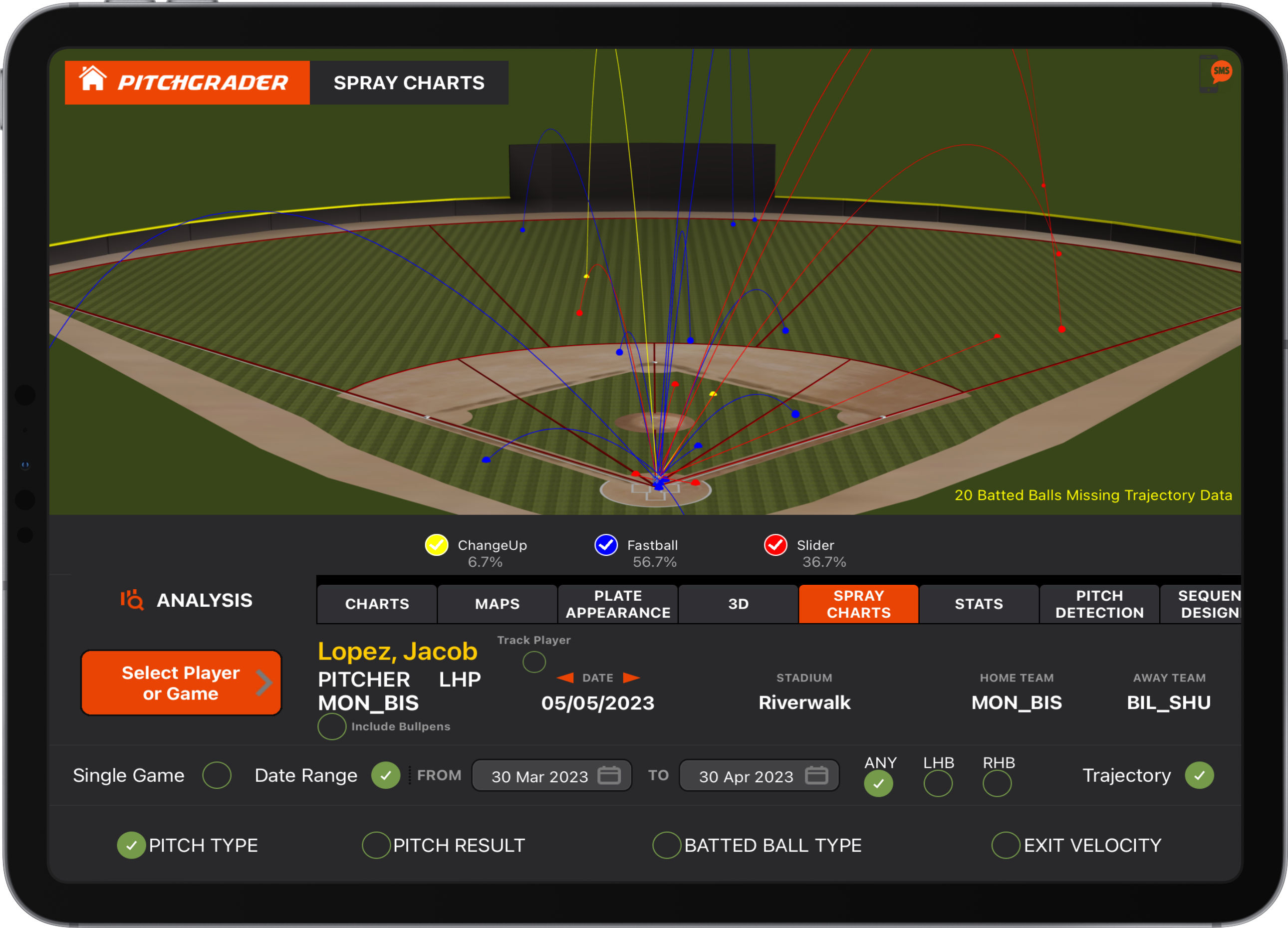
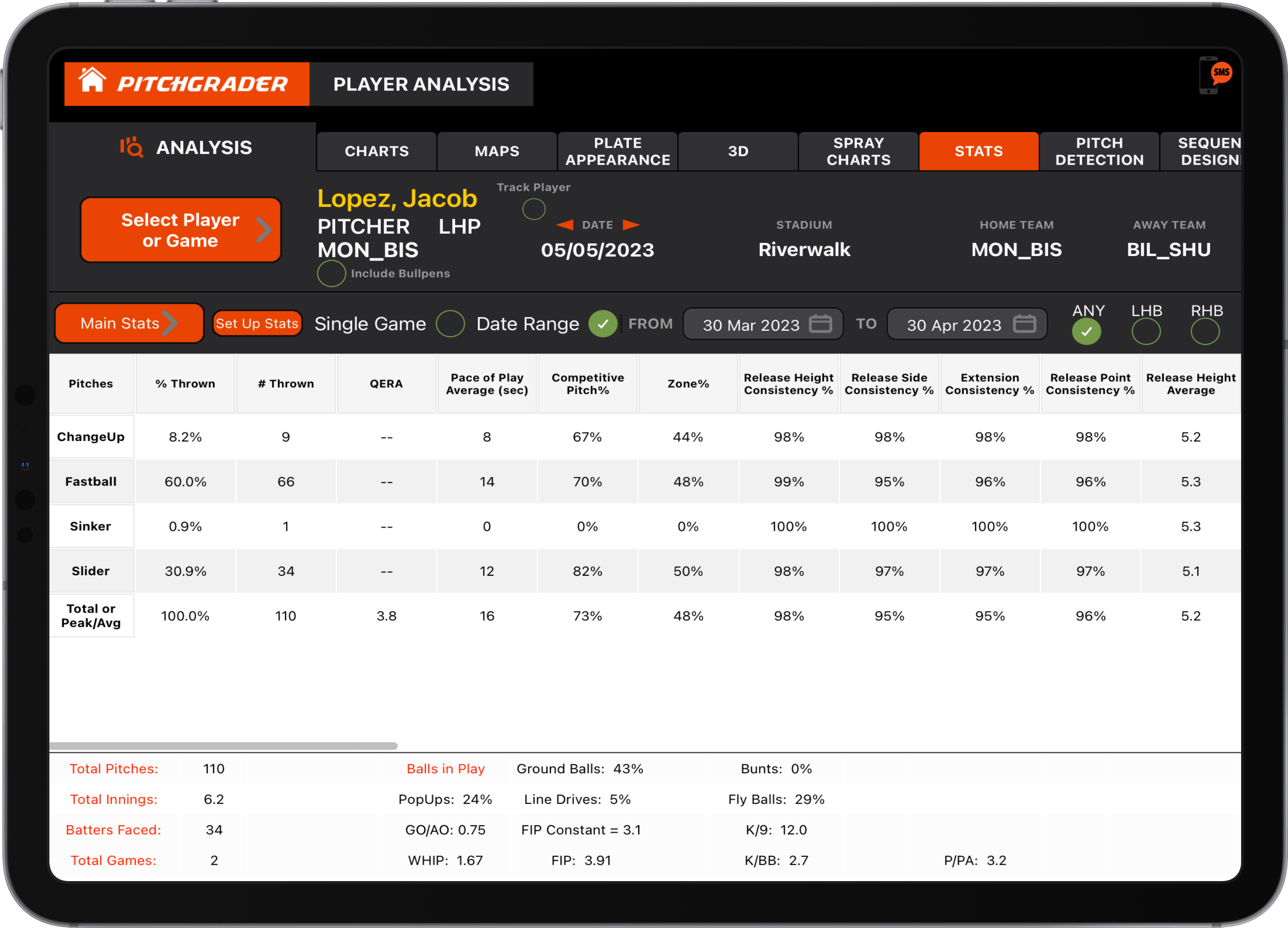
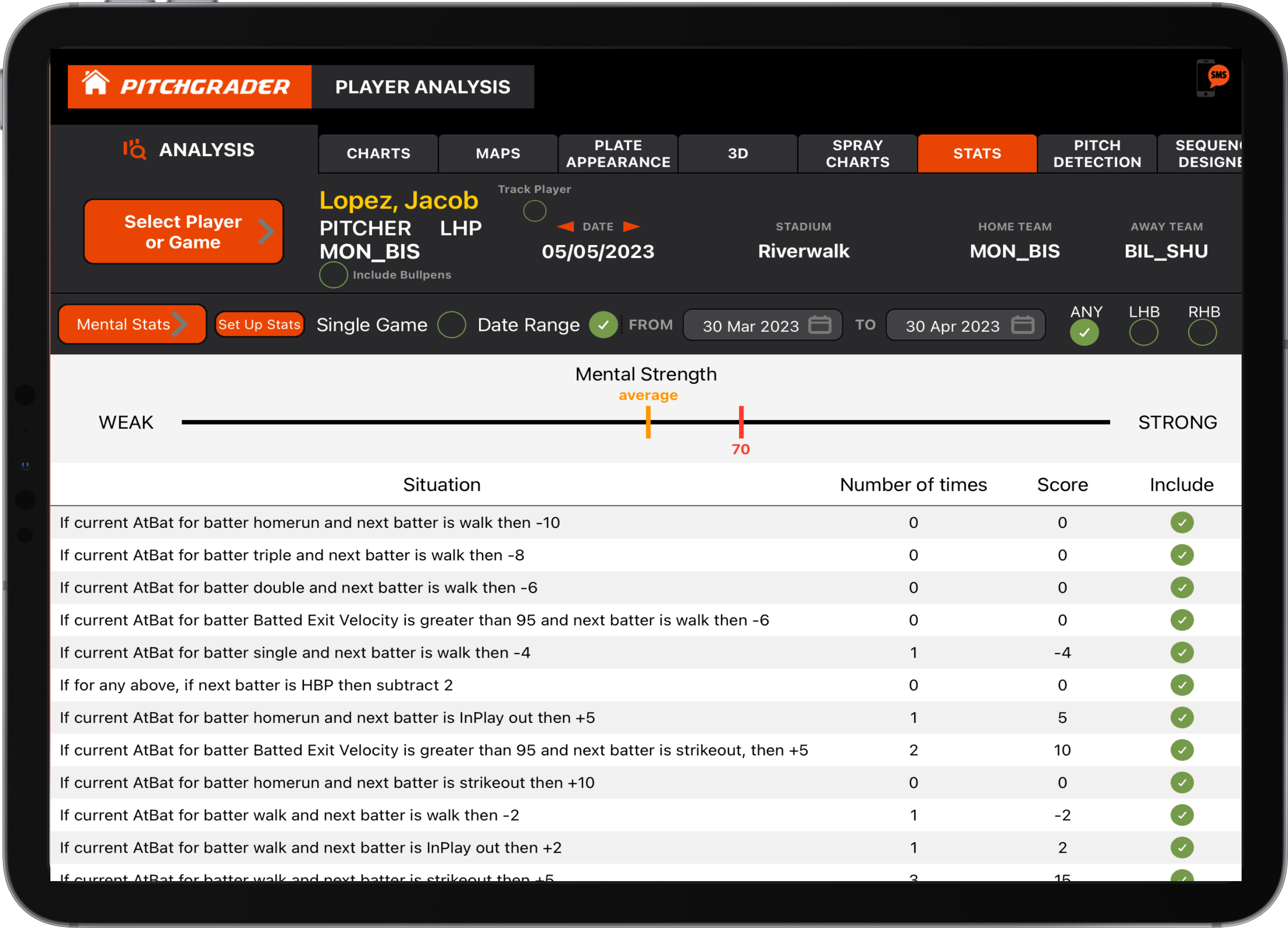
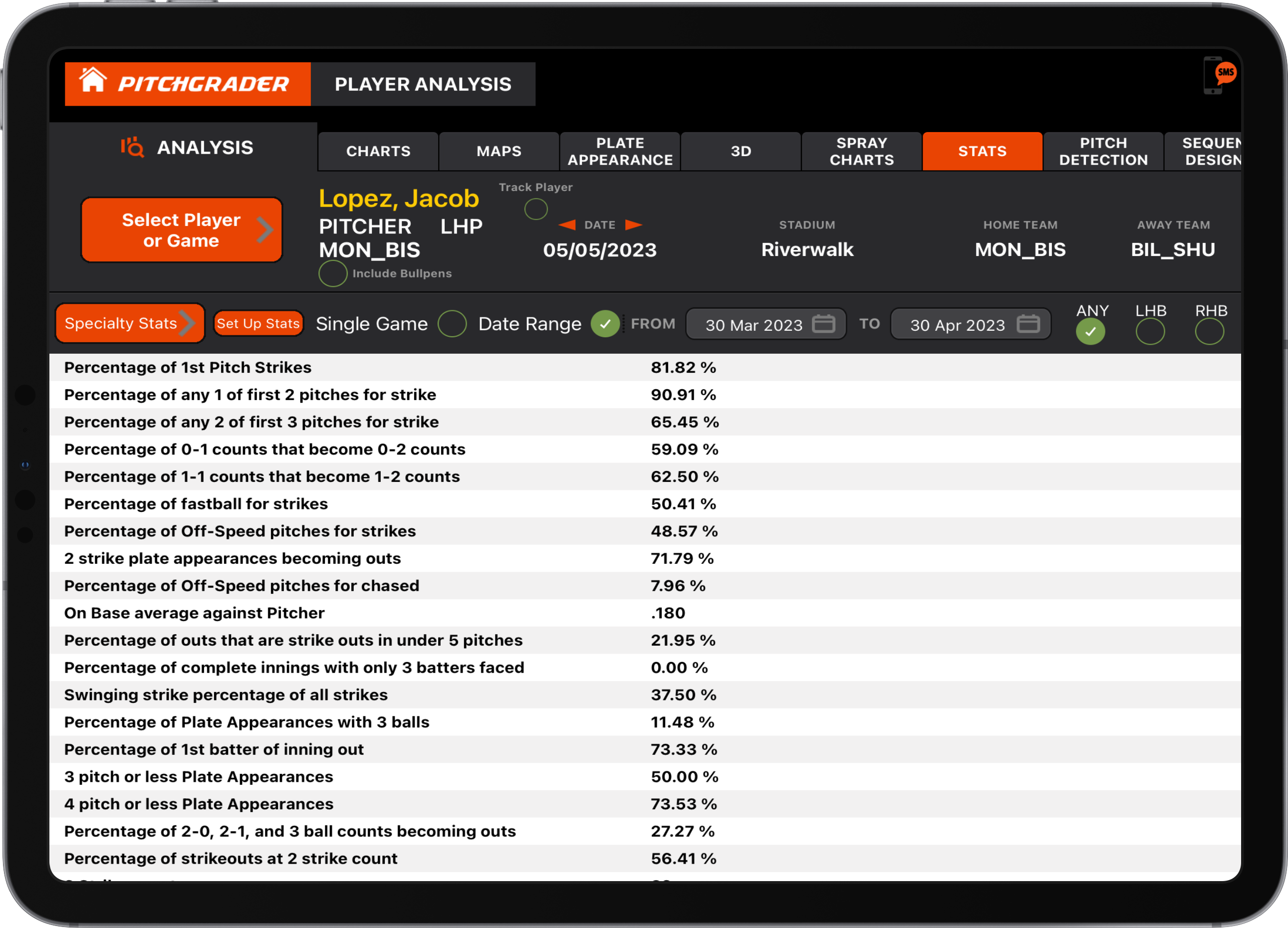
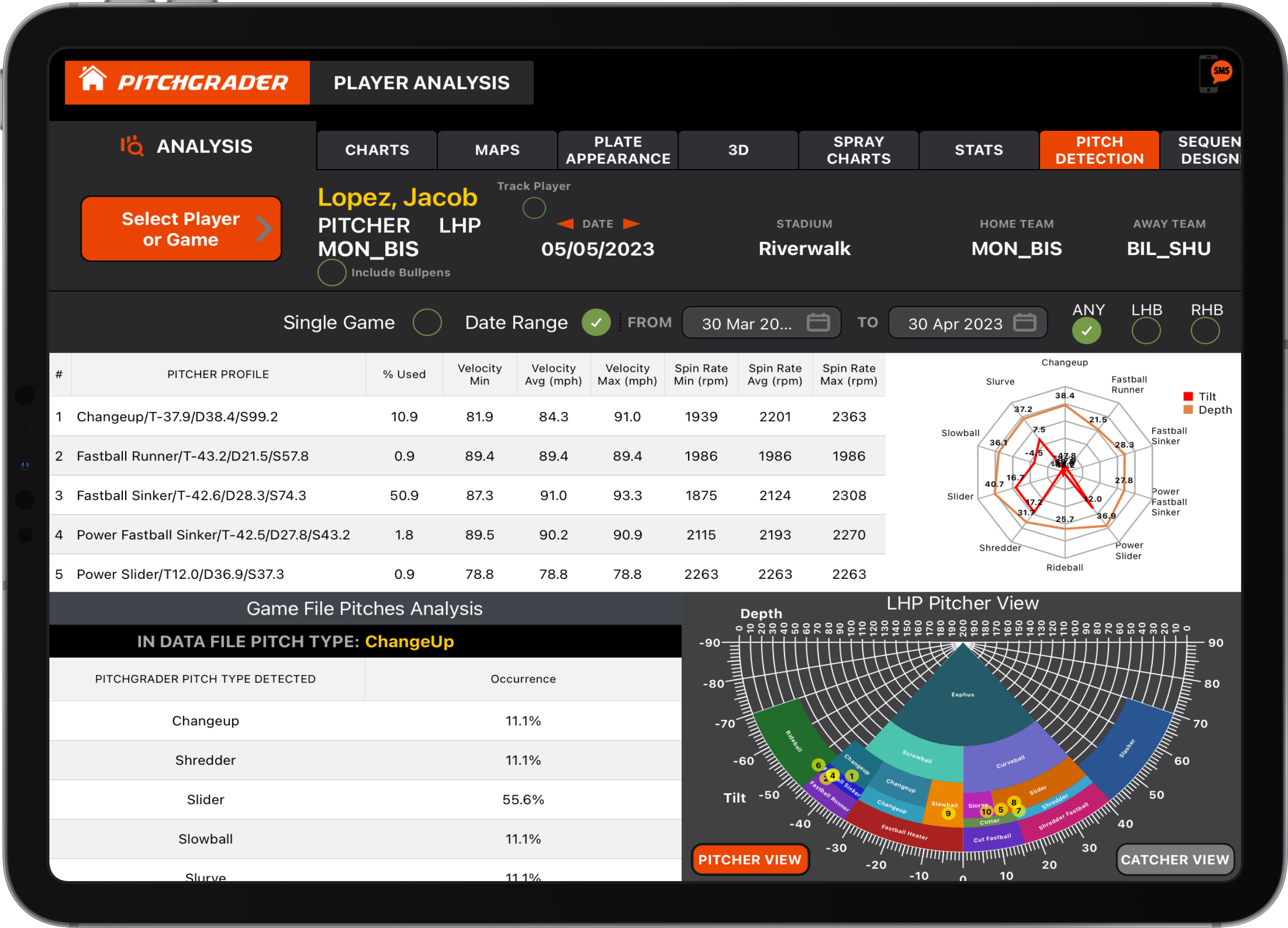
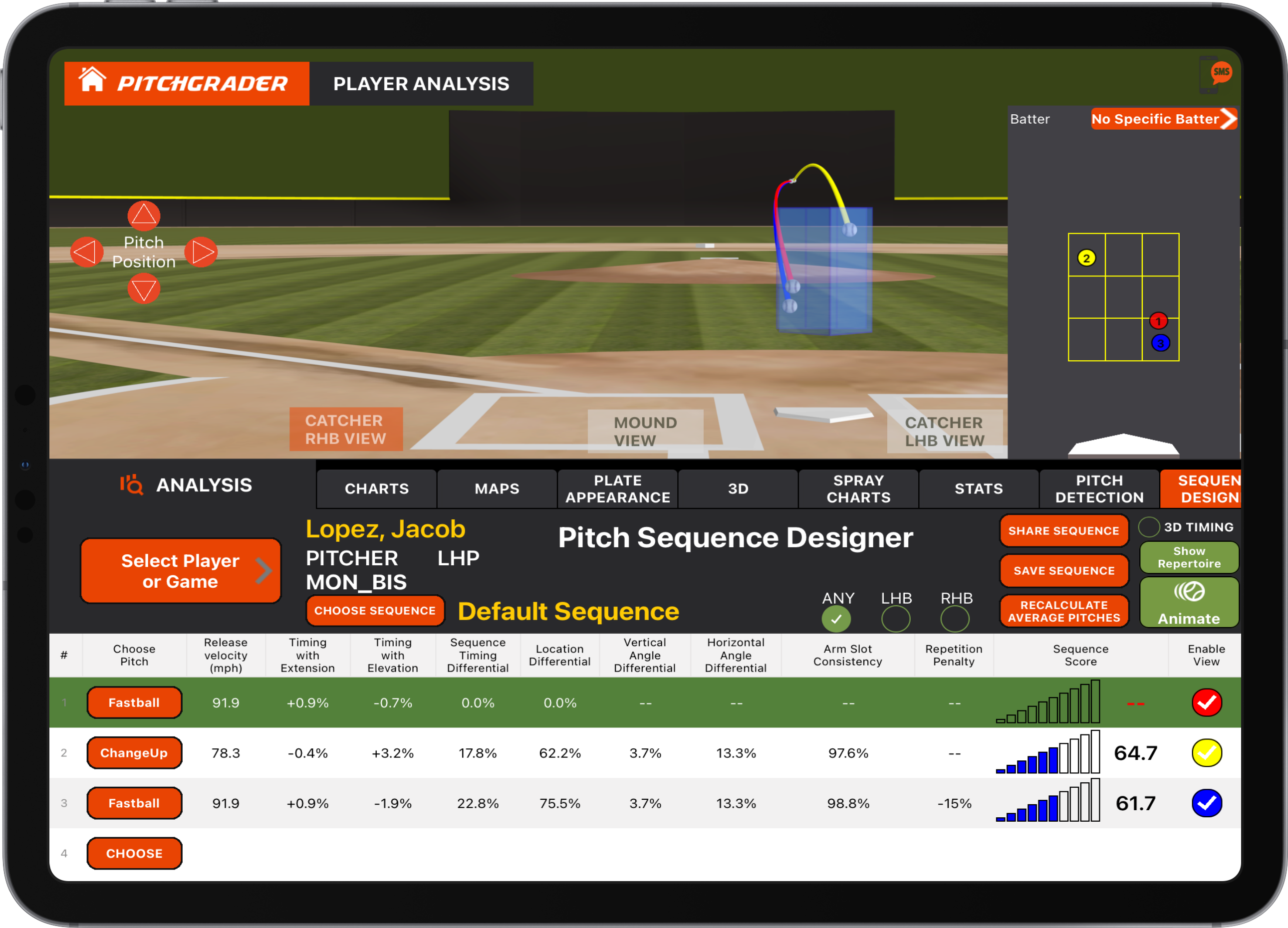
3D View Controls: Use two fingers to pinch and zoom in/out on the 3D field. Use one finger to drag and change the view angle left-right and up-down. You can also use two fingers and drag left/right or up/down to adjust the viewing perspective. To reset the view to factory settings, tap the gear symbol near the upper right of the screen and select "Default Cameras".
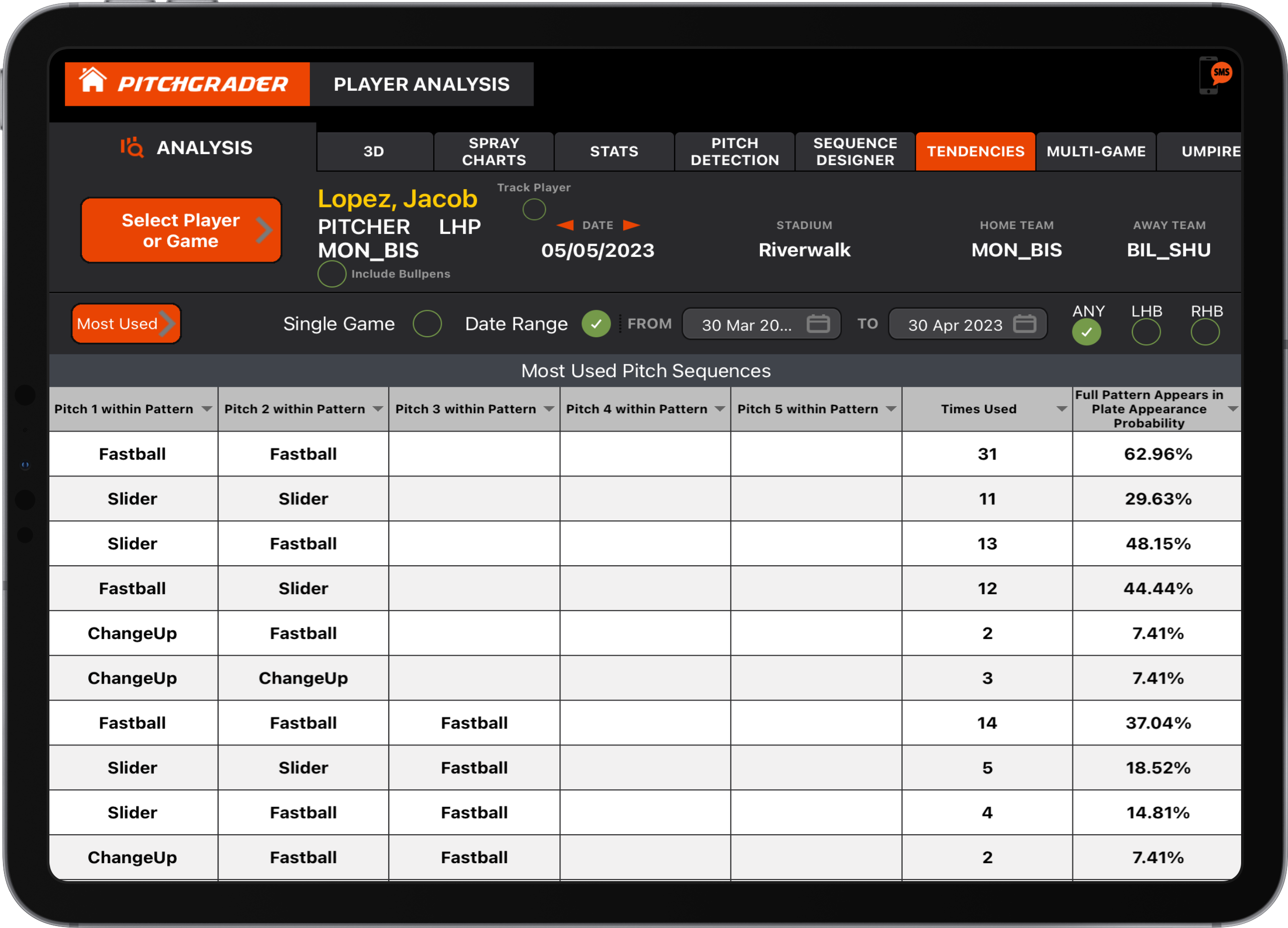
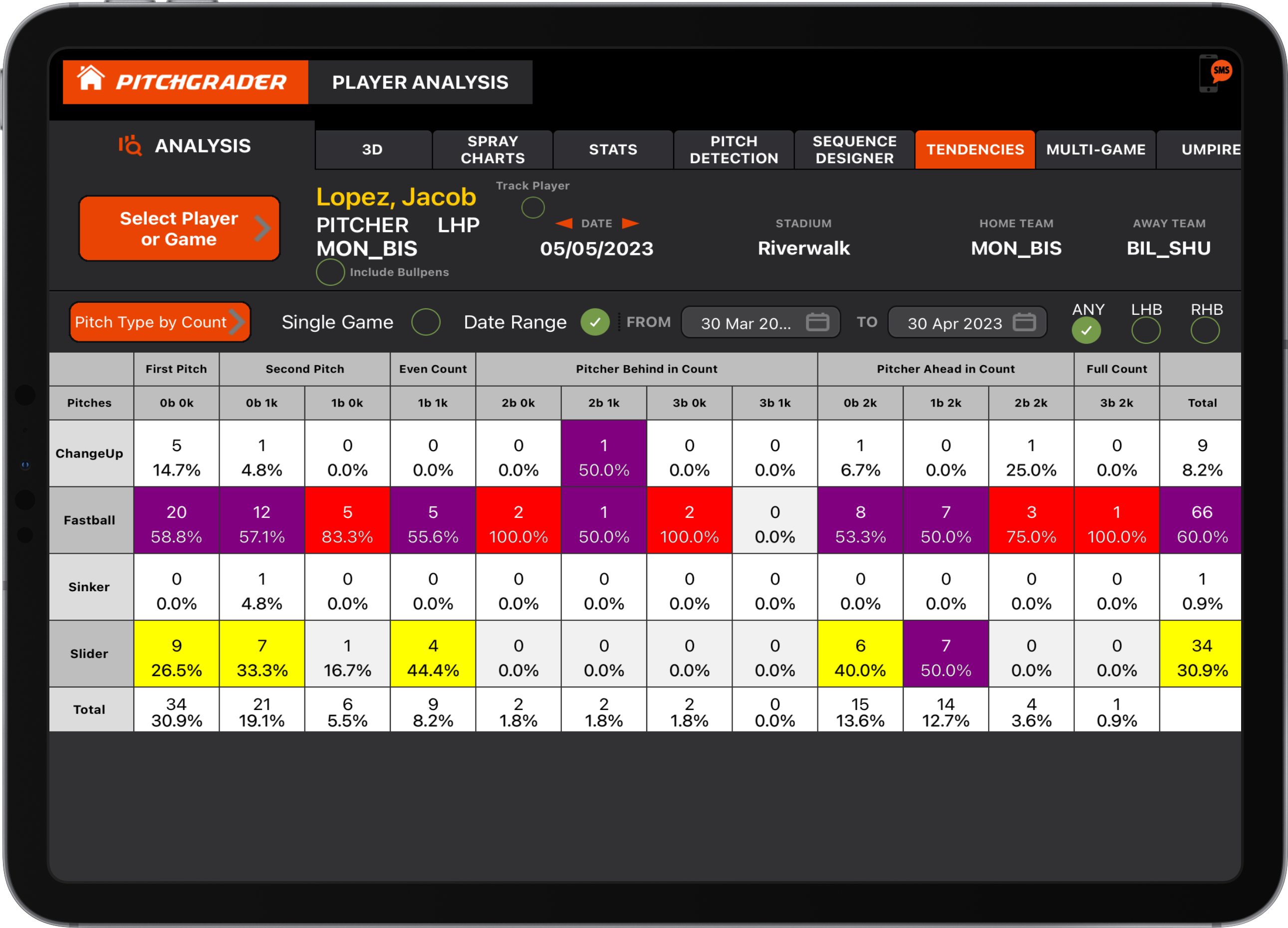
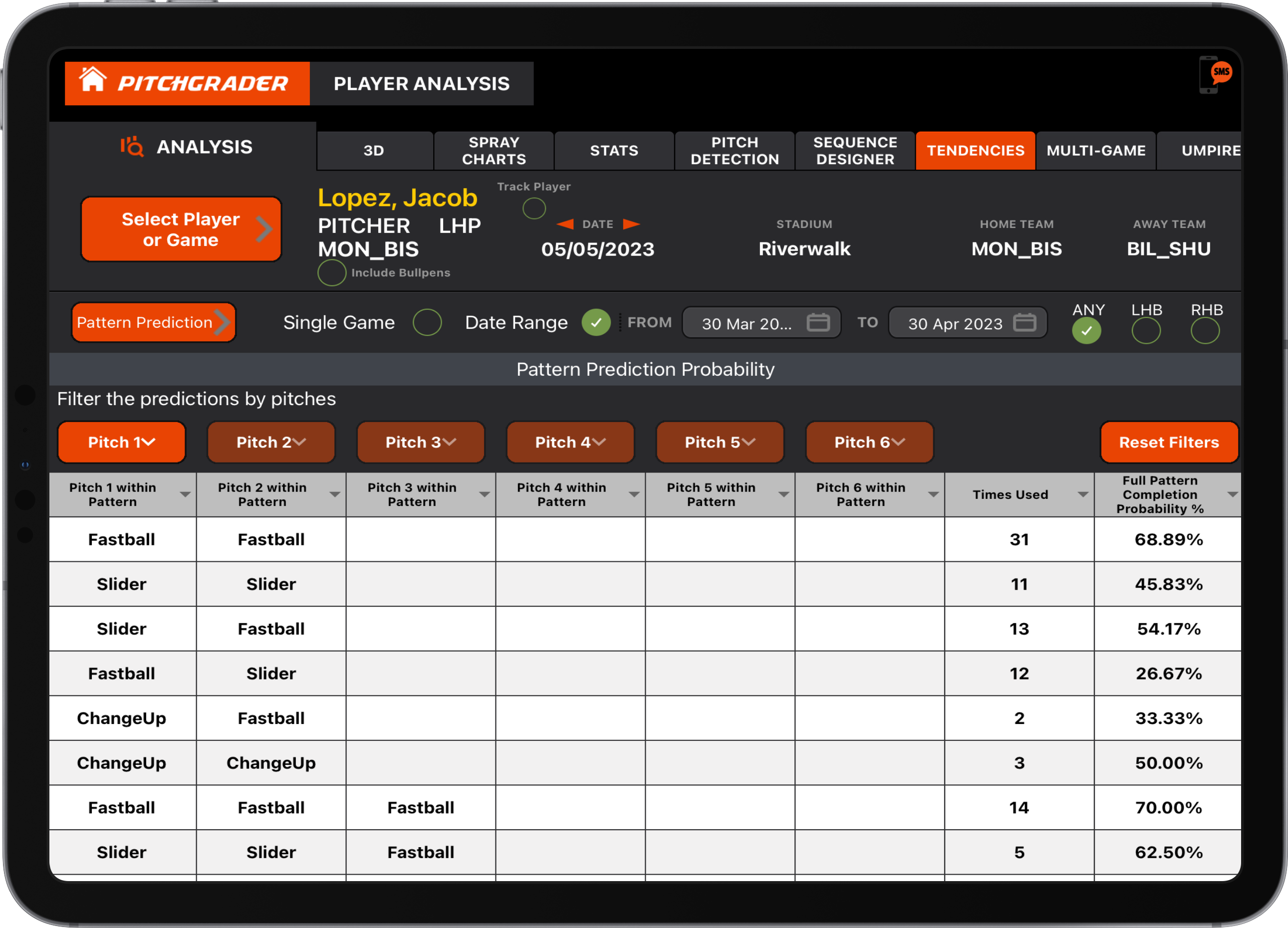
3D Pitch Designer is used to experiment with changing various metrics of a pitcher's pitch in order to see what the shape would be if you had that player make the change. It's most useful for pitch design, either as a single pitch, or you can load 2 pitch types to for example see how to modify his changeup to work better with his sinker, etc. It also has a feature in the "pitch details" pop up that shows you the detected pitch type, so when you're modifying a pitch you can see for example when the pitch changes from a slurve to a slider, etc. You could also load for example, a slider from pitcher A, and a slider from pitcher B, adjust their release points the same, and then you'd be able to see visually the shape difference and it gives you the speed difference, spin rate difference, spin tilt difference, etc. which you can then use those numbers in a Rapsodo or Trackman portable session to have pitcher A learn pitcher B's slider.
3D View Controls: Use two fingers to pinch and zoom in/out on the 3D field. Use one finger to drag and change the view angle left-right and up-down. You can also use two fingers and drag left/right or up/down to adjust the viewing perspective. To reset the view to factory settings, tap the gear symbol near the upper right of the screen and select "Default Cameras".
Well, that covers the basics of what Pitchgrader can do. As you can see, it does quite a lot more than simply showing the measured metrics in list or chart form. As you try to dig in to find out something about a player, that's when you find it allows you to dig as deep as you like, or view things visually with the 3D tools. Instead of only just showing you the data, it has lots of tools like Plate Appearance, Sequence Designer, Tendencies, Mental Stats, 3D tools that let you evaluate pitching and AtBats.
With your server set up and app installed, you're ready to begin advanced baseball analysis!